Feeds:
Posts
Comments

Archive for November, 2008

Problem:  On a home network you can see the remote computer, can access certain files but can’t access all of the directories/files.  You get a message that includes the statement “Not enough server storage is available to process this command.”

Solution:  You need to edit the registry key IRPStackSize.  Before proceeding, it is highly recommended that you first back-up the registry.  To learn how to do so, click here

The official Microsoft support page for this issue can be found here.

Here’s what you need to do:

1.   Open the registry editor.  To learn how to do so, click here.

2.   Navigate to the following key:  HKEY_LOCAL_MACHINE\System\CurrentControlSet\Services\LanmanServer\Parameters
(more…)

Read Full Post »

Problem:  You need to edit the registry.

Solution:

1.  In XP click on Start/Run, type “regedit” (without the quotation marks) and press enter.  On Vista click on the Windows button and, in the start search box, type “regedit” (without the quotation marks) and press enter.  You should now be in the registry editor.

2.  Before making any changes to the registry, it is HIGHLY recommended that you first back-up the registry.  To learn how to do so, click here.

3.  Make the necessary changes to the registry.

4.  To exit the registry editor either click on File/Exit or click on the X in the upper right corner of the registry editor.

Read Full Post »

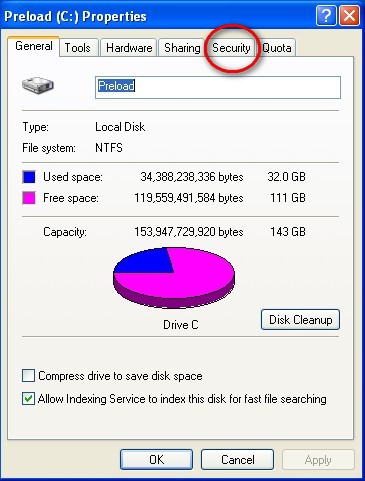
Problem: Using File Explorer on one computer (the local computer), you can access another computer (the remote computer) on your home network but can’t modify, delete or copy files.

Reason: Security/sharing isn’t set properly on the remote computer.

Solution: Here’s how to fix it.  Note, these instructions are for Microsoft home networks set-up as a workgroup.

1.  Open File Explorer on the remote computer.
2.  Highlight the root director (typically C:) and right click.
3.  Select Properties.
4.  Click on the Security tab

cpropertiessecurity

(more…)

Read Full Post »

Problem:  You purchased a new computer.  Microsoft Office 2007 is pre-loaded and you want to remove it.  You go to Add/Remove Programs but that doesn’t work to remove this suite of software. 

Solution:  For Lenovo machines, follow this link:  http://www-307.ibm.com/pc/support/site.wss/document.do?sitestyle=lenovo&lndocid=MIGR-69040.

Follow this link for Microsoft’s instructionas as to how to remove Office 2007 from your computer:  http://support.microsoft.com/kb/928218/en-us.  Note that these directions are somewhat complicated and not well written.  I strongly recommend contacting your computer manufacturer for help on this.

Read Full Post »