Problem: Using File Explorer on one computer (the local computer), you can access another computer (the remote computer) on your home network but can’t modify, delete or copy files.
Reason: Security/sharing isn’t set properly on the remote computer.
Solution: Here’s how to fix it. Note, these instructions are for Microsoft home networks set-up as a workgroup.
1. Open File Explorer on the remote computer.
2. Highlight the root director (typically C:) and right click.
3. Select Properties.
4. Click on the Security tab
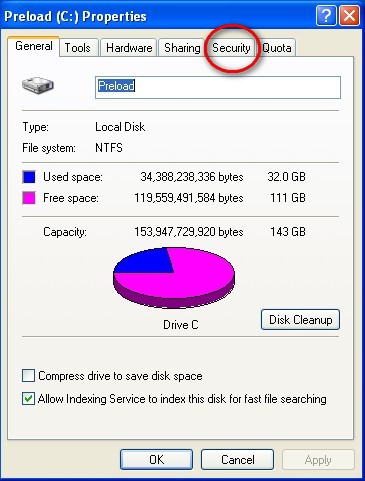
5. Click on your user name
6. Make sure that the box associated with Full Control under the Allow column is checked.

7. Click on Advanced
8. Click on the Owner tab.
9. Select your user name as the owner.

If the foregoing doesn’t work, in addition to steps 1-9, do the following:
10. Select the Sharing tab.
11. Select “Share this folder”
12. Select “Maximum allowed”
13. Click on Permissions

13. Note that if you cannot open “Permission”, do the following:
a. Click on “New Share”
b. Enter a share name, see note below re: share name.
c. Click on Permisssions.
d. In the Allow column, click on the box for Full Control
e. Click OK to exit that dialogue box.
f. Click OK to exit the next dialogue box.
14. Click on “Permission”.
15. Make sure that the box associated with Full Control under the Allow column is checked.

Notes regarding share name:
1. “Everyone” (without the quotes) will allow you and everyone who logs in to the remote computer to access it over the network. While convenient, this is not a good idea from a security point of view.
2. Better is to use your user name and password to have access to the remote computer. In order to do that, make sure that you use the same user name and password for yourself on both the local computer and remote computer (and, of course, for all computers on your home network). Doing so will allow you to access all computers from any of the computers without having to log-in each time.
 EisenGuide

Leave a comment