Feeds:
Posts
Comments

Archive for the ‘Network’ Category

Problem:  A computer on your home network can be seen on a remote computer on the same network but is requiring a log-in to access the files (and, possibly, even with accurate log-in, you still cannot access the files on the remote computer).

Solution:  First, make certain that both computers are using the same user name and password.

Second, ensure that Simple File Sharing is not enabled on the remote computer.  To do so, do the following:

a.  Open Windows File Explorer by right clicking on the Start button and selecting Explore.

b.  On the menu bar, select Tools and Folder Options.

c.  Click on the View tab.

d.  On Advanced Settings, scroll to the bottom and make certain that Use Simple File Sharing (Recommended) is un-checked.

e.  Click OK

This should solve the problem.

Read Full Post »

Problem:  Can’t access a computer (remote computer) from another computer (local computer) on a home network (using Windows Workgroups).

Solution:  Make sure that the user name and password for both computers are the same.

Read Full Post »

Problem:  In a home network (using workgroups) occassionally, for reasons unknown to all, certain computers on the network are no longer visible unless you type \\computername into Windows Explorer.  Here’s how to fix it:

1. Determine which machine is master browser:

a. Obtain and install browstat.

i.  Visit PCChuck’s Network for info on browstat and to download the file.  Alternatively, download the file from

http://www.dynawell.com/download/reskit/microsoft/win2000/browstat.zip.

ii.  Unzip browstat.exe and place it in a directory of your path such as c:\windows.

b. Open DOS screen

i. To do so, Start – > Run and type CMD, press Enter

ii. Type browstat status workgroup (note that for workgroup, type in the name of your workgroup, the default is indeed, workgroup)

iii. A bunch of information will be returned. One of them will be: “Master browser name is: computername

2. Make sure that only one computer on your network is the master browser. Also, make sure that the master browser has not been set to a non-pc such as an attached storage, etc.

3. If a non-pc is set as the master browser, turn off that device.

4. If more than one PC is the master browser, select which PC you want as the master browser (select one that is typically on most often) and disable master browser services on the others (in fact, it’s a good idea to disable master browser capability on all but one of the PCs on your network). To do so, see step 5.

5. To disable master browser services on a PC, do the following:

a. At the PC that will not be the master browser, click on Start – > Run and type services.msc, press Enter.

b. Right click on “Computer Browser” and select Properties.

i.  On the Startup Type dropdown menu, select Disabled.

ii.  On Service Status, click on Stop.

iii.  Click on OK.

c. Close services.

Read Full Post »
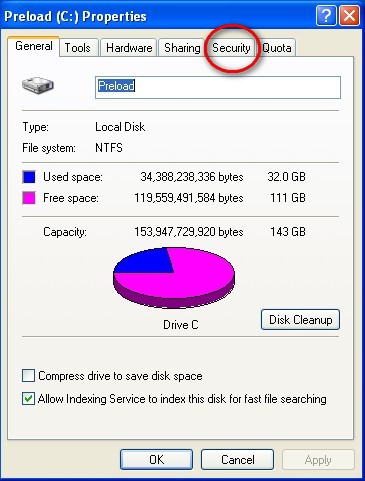
Problem: Using File Explorer on one computer (the local computer), you can access another computer (the remote computer) on your home network but can’t modify, delete or copy files.

Reason: Security/sharing isn’t set properly on the remote computer.

Solution: Here’s how to fix it.  Note, these instructions are for Microsoft home networks set-up as a workgroup.

1.  Open File Explorer on the remote computer.
2.  Highlight the root director (typically C:) and right click.
3.  Select Properties.
4.  Click on the Security tab

cpropertiessecurity

(more…)

Read Full Post »

Problem:  I needed to determine if my modem supports voice on my XP machine.  Here’s how to do it (note that this does not work on Vista as Vista does not support HyperTerminal).

1. From Windows, click Start, Run, then type in hypertrm and click OK.

2. A Connection Description screen should pop up asking for a name for the connection. Type in Test, then click OK.

(more…)

Read Full Post »

SYMPTOM:  Laptop connects fine via wired connection but using wireless, it seems to be able to connect to router (at least as indicated by system tray icon) but can’t access Internet or other computers on the LAN.


SOLUTION:  Need to re-install wireless driver.  Download the file 77wc39ww.exe.  Double click on that file and follow prompts.  Allow the wizard to over-write all files.  Re-boot computer.


NOTE:  Might be necessary to turn off wireless security (using the router interface on another computer) and then turn it back on.

Read Full Post »