Feeds:
Posts
Comments

Posts Tagged ‘Windows’

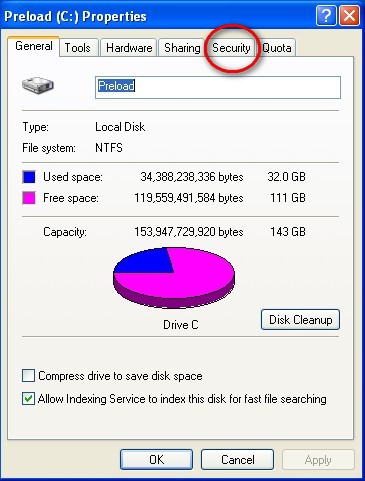
Problem: Using File Explorer on one computer (the local computer), you can access another computer (the remote computer) on your home network but can’t modify, delete or copy files.

Reason: Security/sharing isn’t set properly on the remote computer.

Solution: Here’s how to fix it.  Note, these instructions are for Microsoft home networks set-up as a workgroup.

1.  Open File Explorer on the remote computer.
2.  Highlight the root director (typically C:) and right click.
3.  Select Properties.
4.  Click on the Security tab
cpropertiessecurity

(more…)

Read Full Post »

Problem:  You purchased a new computer.  Microsoft Office 2007 is pre-loaded and you want to remove it.  You go to Add/Remove Programs but that doesn’t work to remove this suite of software. 

Solution:  For Lenovo machines, follow this link:  http://www-307.ibm.com/pc/support/site.wss/document.do?sitestyle=lenovo&lndocid=MIGR-69040.

Follow this link for Microsoft’s instructionas as to how to remove Office 2007 from your computer:  http://support.microsoft.com/kb/928218/en-us.  Note that these directions are somewhat complicated and not well written.  I strongly recommend contacting your computer manufacturer for help on this.

Read Full Post »

Problem:  You want to remove a program that doesn’t show up in Windows’ Add/Remove Program feature (or you have used this feature and the program has not been completely removed).

Solution:  Remove the program manually. 

Here’s how:

1.  Create restore point on your computer.

2.  As you will be editing the registry, back-up the registry.  Click here to learn how.

3.  Because the following steps may impact other applications on your computer, I recommend backing up your entire computer but, that said, I have used this procedure several times with no problems.

4.  Find the directory for the application (typically under c:\program files) and delete the directory.

5.  Open RegEdit (type regedit in the Run box in XP or Vista or type regedit in the Vista search box).

(more…)

Read Full Post »

Autorun allows programs to automatically start running when you place a CD/DVD in your optical drive.  While this is often a good thing (or at least neutral), if there is a malicious program on the CD/DVD, it too will automatically run.

If you disable autorun, programs will not automatically run when you insert a CD/DVD.  Rather, a dialogue box will open asking if you would like to run the program.  While a bit less convenient, it is more secure.

In order to disable autorun in XP/Vista you will need to edit the registry and, as always, it’s a good idea to back-up the registry before making any changes.  Click here for instructions on how to back-up the registry.

Here’s how to disable autorun in XP/Vista:

1.  In XP, click Start – Run (in Vista click Start and type “regedit” in the search box, click OK in the User Account Control warning box if that box opens).

(more…)

Read Full Post »

Problem:  I downloaded the Silverlight installer and installed the program on my Vista Home Premium machine.  However, when I go to a website and click on a Silvelight application, I get a message telling me that I have to install Silverlight.

I have re-booted, removed/re-installed, etc.  No luck.  Finally got this answer from Microsoft.  Hope it helps you.

(more…)

Read Full Post »

 To back-up the entire registry, do the following:

 1.                  Click on Start – > Run

2.                  Type regedit

3.                  In the left hand pane, single click on Computer

4.                  Click on File – > Export

5.                  A dialogue box will open.  Name the file (I typically use the format PCName.Registry.Date.reg).  Make certain that it has a .reg extension

6.                  Make certain that, in the lower left corner of the dialogue box, where it says Export Range, the radio button “All” is checked.

7.                  I suggest saving the file to a location that is NOT on this computer. 

8.                  It might take a bit of time to finish the operation.  When done, you will have the new file that you just created.  To restore the registry simply copy that file to this computer and double-click on the file that you just created.

(more…)

Read Full Post »